
Disclosure: some links in this post are affiliate links. If you sign up through them I may earn a commission at no extra cost to you. I only recommend hosts I actually use for client sites.
That little orange update badge in your WordPress dashboard is easy to ignore. Then one day you finally click "update all," your homepage turns into a white screen, and you are googling "how to fix my website" at 11 pm.
I recover broken sites for a living, and plugin updates done carelessly are one of the top reasons small business sites go down. Here is the exact routine I use across dozens of client sites. It takes about ten minutes.
Why you cannot just skip updates
Outdated plugins are the number one way WordPress sites get hacked. When a plugin developer patches a security hole, that patch note is a public roadmap for attackers. Every day you wait, your site is running software with a known, published vulnerability.
So the answer is not to avoid updates. It is to do them in a way that will not take your site down.
Step 1: Back up before you touch anything
Never update without a fresh backup. If something breaks, a backup turns a disaster into a five minute fix.
Good hosting makes this painless. SiteGround keeps daily backups you can restore with one click, and Hostinger includes automatic backups on most plans. If your host does not offer backups, install a plugin like UpdraftPlus and run a manual backup first. Confirm the backup actually finished before you move on.
Step 2: Update one plugin at a time
The "update all" button is convenient and dangerous. If you update twelve plugins at once and the site breaks, you have no idea which one caused it.
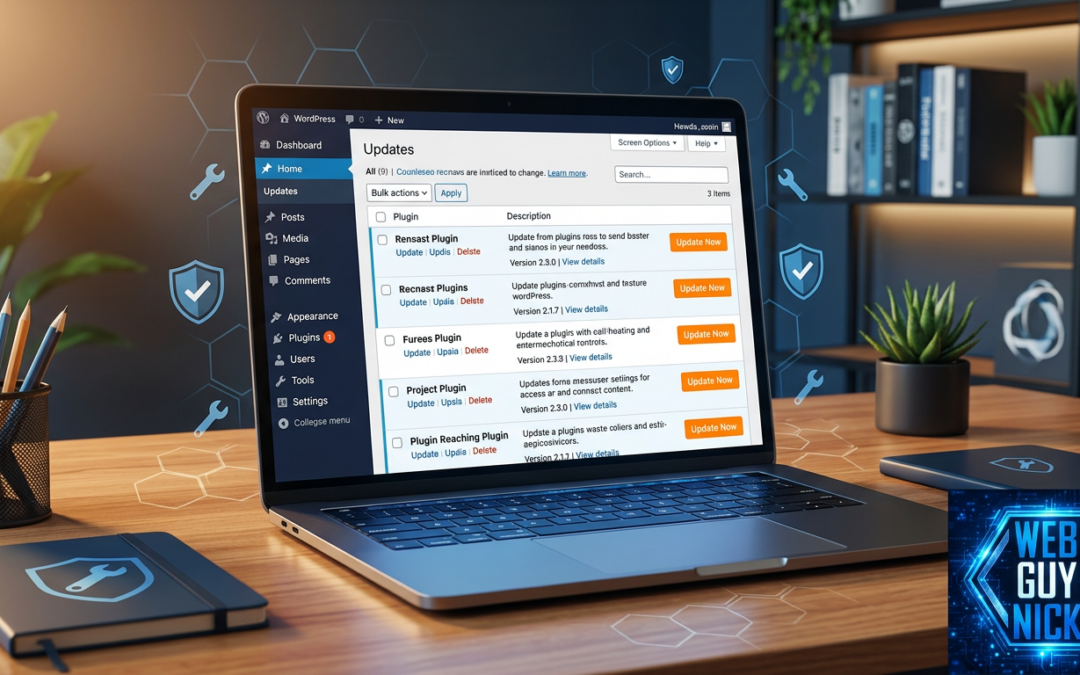
Go to Dashboard, then Updates. Update plugins one at a time, starting with security and backup plugins. After each one, glance at your site in another tab. Slower, yes. But when something goes wrong you know exactly which plugin did it, and that knowledge is everything.
Step 3: Check your site like a customer would
When the updates are done, do not just look at the homepage. Click through the pages that make you money. Load your contact form and actually submit a test message. Check your booking or checkout flow on your phone, since that is where most of your visitors are.
A surprising number of "my site is broken" calls I get are really "my contact form quietly stopped working three weeks ago." A two minute test catches that on day one.
What to do when an update breaks something
First, do not panic. If you followed step one, you have a backup. Restore it, and your site is back the way it was.
If you can still get into your dashboard, deactivate the plugin you just updated and see if the problem clears. If you are locked out entirely, your host's file manager lets you rename that plugin's folder inside wp-content/plugins, which forces WordPress to deactivate it. If any of that sounds like more than you signed up for, reach out and I will get it sorted.
Or never think about updates again
Most business owners do not want a ten minute weekly ritual. They want their site to just work. That is exactly what a website care plan covers: I handle updates, backups, and security monitoring every week, and you never see a white screen.
Not sure what shape your site is in right now? I offer a no cost site audit that checks your plugins, backups, speed, and security, and tells you plainly what needs attention. Request your audit here and I will take a look this week.